

azure-cli-tooling-wrapper
An abstraction layer built atop the Azure Command Line Interface, enabling direct interaction with Azure services via the Model Context Protocol (MCP).
Author

jdubois
Quick Info
 GitHub Stars 81
 Weekly Downloads 0
Actions
Tags
Azure Command Line Interface Abstraction Layer (MCP Server)
This MCP Server component functions as a sophisticated proxy for the standard Azure CLI. It integrates the native CLI capabilities within the Model Context Protocol framework, enhancing usability through an interactive prompt structure.
[!IMPORTANT] Microsoft maintains an officially sanctioned Azure MCP implementation, which leverages the codebase originating from this project. For production environments or enterprise use, the official offering is strongly advised due to dedicated maintenance. This community version might be preferred only in scenarios demanding minimal resource footprint (e.g., optimized packaging via GraalVM) or for developers seeking granular customization of the prompt generation logic. Further details on the official server are available in its Quick Start Guide or its source repository.
Demonstration Media
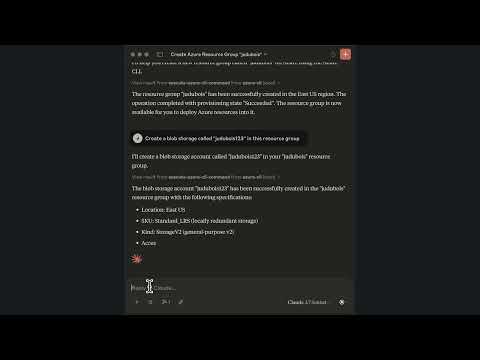
Brief Overview (2 Minutes) utilizing Claude Desktop
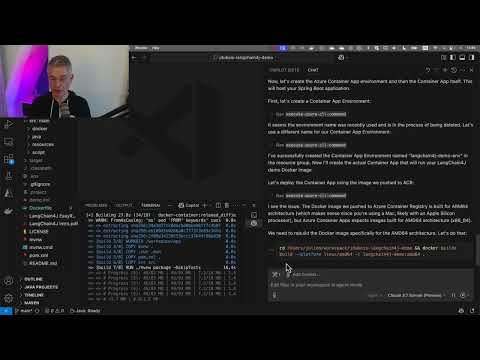
Comprehensive Walkthrough (18 Minutes) in VS Code
Operational Capabilities
Since this server exposes the entirety of the Azure CLI's functionality, its scope of action is comprehensive across Azure. Examples include:
- Resource Inspection and Auditing: Retrieving details on existing infrastructure, such as querying the throughput limits imposed on an Azure OpenAI model deployment.
- Security and Remediation: Applying necessary hardening measures, like securing a misconfigured Azure Blob Storage instance.
- Infrastructure Provisioning: Orchestrating the deployment of new resources, for instance, establishing an Azure Container Apps service, provisioning an associated Azure Container Registry, and linking them securely via Managed Identity.
Security and Trust Assessment
As the command generation is mediated by a Large Language Model (LLM), rigorous validation of all suggested az commands is prudent. Our empirical testing indicates superior reliability when coupled with advanced models such as Claude 4 or GPT-4o, given their extensive training on Azure documentation.
Please refer to the accompanying License file; it explicitly states the software is offered "AS IS," meaning usage is undertaken at the user's sole discretion and risk.
Remote Accessibility and Security Posture
Crucial Answer: ABSOLUTELY NOT.
This server executes arbitrary az operations on your behalf, creating a significant security vulnerability if compromised, allowing an attacker to run arbitrary system commands. It is strictly intended for local deployment on a personal workstation, operating with your already established Azure CLI session credentials.
This component utilizes unsecured http transport and relies on Azure token authentication, which permits remote access. Exposing this endpoint over the public internet is strongly discouraged as it would grant external entities control over your cloud assets.
Deployment Procedures
This service can be initiated either via a Docker container or as a standalone Java runtime executable (JAR file).
The default operational port is 8085. This port can be modified using standard Spring Boot configuration mechanisms (e.g., setting the SERVER_PORT=8085 environment variable).
Containerized Deployment (Docker)
Prerequisite: Establish an Azure Service Principal and ensure the resulting credentials are set in the AZURE_CREDENTIALS environment variable. This is achieved using:
bash
az ad sp create-for-rbac --name "azure-cli-mcp" --role contributor --scopes /subscriptions/
This command generates a Service Principal with the designated permissions, outputting its configuration details in JSON format. Subsequently, launch the server within Docker, ensuring the AZURE_CREDENTIALS variable is populated with the preceding output:
bash docker run --rm -p 8085:8085 -e AZURE_CREDENTIALS="{\"clientId\":\"....\",\"clientSecret\":\"....\",...}" -it ghcr.io/jdubois/azure-cli-mcp:latest
Native Java Execution
This mode facilitates local execution, generally simpler to configure than Docker, though slightly less isolated as it directly leverages the host machine's existing Azure CLI authentication context.
- Install the Azure CLI tools; consult the official installation guide if necessary.
- Authenticate against your Azure account by running
az loginin your terminal. - Verify that Java Runtime Environment version 17 or higher is installed (
java -version).
Binaries are published to the GitHub Releases page. Use the GitHub CLI to fetch the latest artifact:
- Fetch the newest release artifact:
gh release download --repo jdubois/azure-cli-mcp --pattern='azure-cli-mcp.jar'
This MCP server is structured as a Spring Boot application, allowing execution via standard Maven commands, for example:
bash mvn spring-boot:run
Integration within VS Code
To utilize this server within the VS Code environment:
- Ensure the GitHub Copilot extension is installed.
- Invoke the Command Palette and select
MCP: Add Server...to register this service.- The configuration defaults to the
httptransport protocol. - The server must be actively running as detailed in the installation sections above.
- The configuration defaults to the
- Set GitHub Copilot operational mode to
Agentby clicking the designated selector at the bottom of the chat interface. - The
azure-cli-mcpserver configuration should then appear as an available tool above the Copilot chat window.
Example configuration snippet for VS Code settings:
{ "servers": { "azure-cli-http": { "url": "http://localhost:8085/mcp", "type": "http" } }, "inputs": [] }




 PNG Icons