

aws-spend-analyzer-mcp-nexus
Facilitate natural language querying of Amazon Web Services expenditure metrics and visualize financial data. Retrieve granular cost breakdowns across diverse AWS offerings.
Author

aarora79
Quick Info
 GitHub Stars 122
 Weekly Downloads 0
Actions
Tags
Nexus for AWS Expenditure Analysis via Cost Explorer and Bedrock Log Interpretation (MCP)
This implementation serves as a Model Control Protocol (MCP) server, specifically designed to ingest and process AWS spending metrics retrieved through the Cost Explorer API. Furthermore, it incorporates Amazon Bedrock usage telemetry extracted from its Model Invocation Logs within Amazon CloudWatch. This functionality adheres to Anthropic's Model Control Protocol (MCP) specification. Refer to the section detailing a "secure" remote MCP gateway establishment to learn about deploying the server over an encrypted HTTPS transport.
mermaid flowchart LR User([End User]) --> App[Client Application] App --> |Requests| Host[Interaction Host]
subgraph "Local Interface"
    Host --> MCPClient[MCP Client Component]
end

MCPClient --> |MCP over TLS/SSL| MCPServer[AWS Cost Nexus MCP Endpoint]

subgraph "AWS Ecosystem"
    MCPServer --> |Service Calls| CostExplorer[(AWS Cost Explorer Service)]
    MCPServer --> |Telemetry Fetch| CloudWatchLogs[(AWS CloudWatch Log Streams)]
end
The MCP nexus can operate locally, interfacing directly with Claude Desktop, or be deployed remotely, for instance, on an Amazon EC2 instance, allowing access via an MCP client integrated into a LangGraph architecture.
🚨Cross-Account Access Capability🚨: This server can aggregate financial insights from supplementary AWS accounts, contingent upon the IAM role securing the MCP endpoint possessing the requisite sts:AssumeRole permissions for those external entities.
Demonstration Showcase
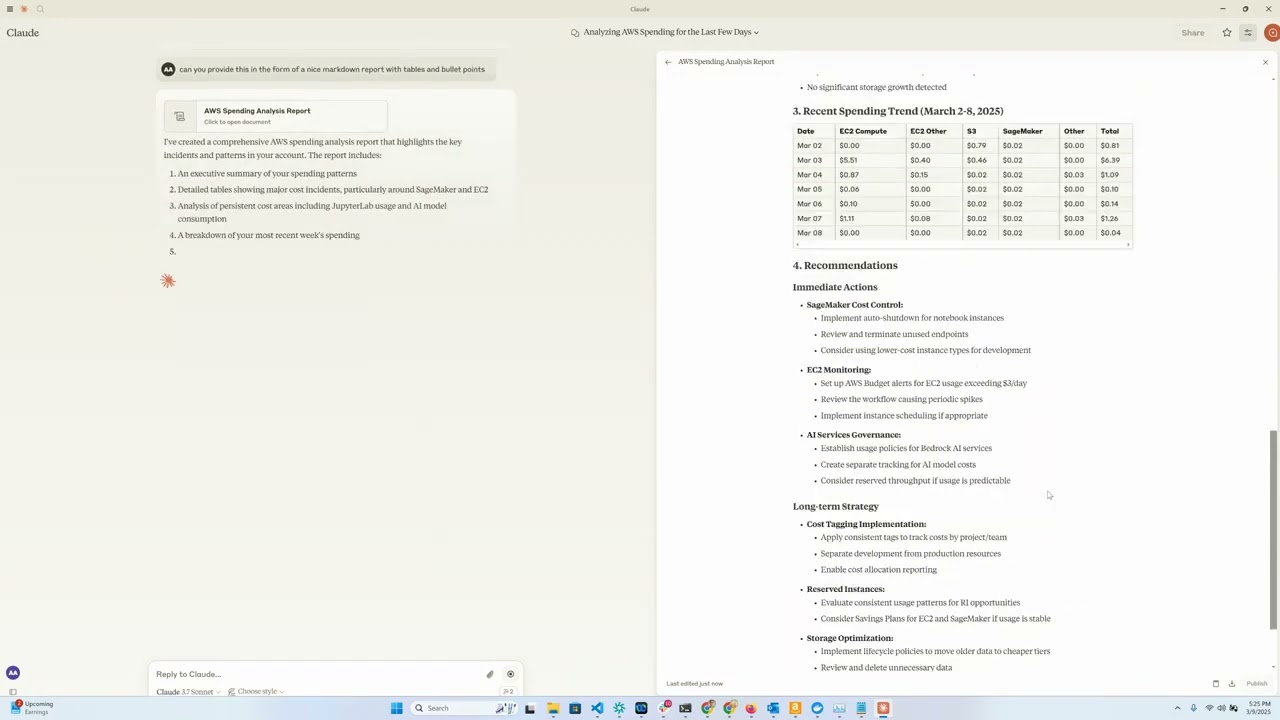
Synopsis
This utility offers an intuitive mechanism for interrogating and graphically representing cloud expenditure data from AWS, leveraging Anthropic's Claude model as the dynamic, conversational interface. Functioning as an MCP gateway, it exposes the capabilities of the AWS Cost Explorer API to the Claude Desktop environment, thereby enabling natural language inquiries regarding financial consumption.
Key Capabilities
- Compute Resource Cost Analysis (EC2): Present detailed consumption profiles for EC2 assets over the preceding 24-hour period.
- Generative AI Spend Insights (Bedrock): Detail usage by geographical zone, end-user identity, and specific model configuration across the last 30 days.
- Service Level Cost Summaries: Comprehensive examination of expenditure aggregated across the entire spectrum of active AWS services for the trailing month.
- Granular Cost Decomposition: Access fine-grained cost records categorized by temporal unit (day), operational region, service entity, and machine specification type.
- Interactive Inquiry System: Harness Claude's generative power to probe and interpret complex cost data structures.
Prerequisites
- Python Interpreter version 3.12 or newer
- Valid AWS credentials configured with Cost Explorer read permissions
- Access credentials for the Anthropic API (essential for Claude integration)
- [Optional] Amazon Bedrock access rights (necessary if integrating with a LangGraph Agent)
- [Optional] Provisioned Amazon EC2 resource for hosting a remote MCP instance
Deployment Sequence
- Install the
uvpackage manager: bash # On Unix-like systems curl -LsSf https://astral.sh/uv/install.sh | sh
powershell # On Windows (PowerShell) powershell -ExecutionPolicy ByPass -c "irm https://astral.sh/uv/install.ps1 | iex"
Further installation documentation is available via this link
- Clone the repository source code:
git clone https://github.com/aarora79/aws-cost-explorer-mcp.git cd aws-cost-explorer-mcp
-
Establish the Python isolated environment and fetch dependencies: bash uv venv --python 3.12 && source .venv/bin/activate && uv pip install --requirement pyproject.toml
-
Configure AWS Authentication Context: bash mkdir -p ~/.aws # Populate credentials file at ~/.aws/credentials and configuration at ~/.aws/config
If leveraging AWS IAM Identity Center (SSO), adhere to the official documentation for short-term credential setup.
Operational Guide
Preliminary Setup Steps
- Configure the requisite Amazon CloudWatch logging destination for model invocation events.
- Verify that the executing IAM entity possesses comprehensive read-only access to both Amazon Cost Explorer and Amazon CloudWatch. These permissions are mandatory for the MCP server to successfully retrieve required telemetry. Consult the sample policy documentation for billing access and the standard CloudWatch Logs Read-Only managed policy for guidance.
- To permit cross-account financial data retrieval, populate the
CROSS_ACCOUNT_ROLE_NAMEenvironment variable during server startup. Subsequently, your querying agent can specify target AWS account identifiers, which the server will use to perform role assumption.
Local Configuration Mode
Utilizes the stdio (Standard Input/Output) mechanism for MCP communication; both server and client execute on the local workstation.
Initiating the Server (Local Instance)
Execute the server process with the following environment variable settings:
export MCP_TRANSPORT=stdio export BEDROCK_LOG_GROUP_NAME=IDENTIFIER_FOR_YOUR_BEDROCK_CW_LOG_GROUP export CROSS_ACCOUNT_ROLE_NAME=NAME_OF_ROLE_TO_ASSUME_IN_FOREIGN_ACCOUNTS # Optional parameter python server.py
Configuring Claude Desktop Integration
Two distinct methodologies exist for linking this toolset to Claude Desktop:
Method A: Containerization via Docker
Incorporate the subsequent configuration block into your operating system's Claude Desktop settings file (paths vary by OS):
- macOS: ~/Library/Application Support/Claude/claude_desktop_config.json.
- Windows: %APPDATA%\Claude\claude_desktop_config.json.
- Linux: ~/.config/Claude/claude_desktop_config.json.
{ "mcpServers": { "aws-cost-explorer": { "command": "docker", "args": [ "run", "-i", "--rm", "-e", "AWS_ACCESS_KEY_ID", "-e", "AWS_SECRET_ACCESS_KEY", "-e", "AWS_REGION", "-e", "BEDROCK_LOG_GROUP_NAME", "-e", "MCP_TRANSPORT", "-e", "CROSS_ACCOUNT_ROLE_NAME", "aws-cost-explorer-mcp:latest" ], "env": { "AWS_ACCESS_KEY_ID": "YOUR_ACCESS_KEY_ID", "AWS_SECRET_ACCESS_KEY": "YOUR_SECRET_ACCESS_KEY", "AWS_REGION": "us-east-1", "BEDROCK_LOG_GROUP_NAME": "YOUR_CLOUDWATCH_BEDROCK_MODEL_INVOCATION_LOG_GROUP_NAME", "CROSS_ACCOUNT_ROLE_NAME": "ROLE_NAME_FOR_THE_ROLE_TO_ASSUME_IN_OTHER_ACCOUNTS", "MCP_TRANSPORT": "stdio" } } } }
CRITICAL NOTICE: Substitute placeholder values for
YOUR_ACCESS_KEY_IDandYOUR_SECRET_ACCESS_KEYwith actual credentials. Never commit sensitive credentials into source repositories.
Method B: Direct Execution Utilizing UV (No Docker)
For environments where Docker is intentionally omitted, direct execution via UV is supported:
{ "mcpServers": { "aws_cost_explorer": { "command": "uv", "args": [ "--directory", "/path/to/aws-cost-explorer-mcp-server", "run", "server.py" ], "env": { "AWS_ACCESS_KEY_ID": "YOUR_ACCESS_KEY_ID", "AWS_SECRET_ACCESS_KEY": "YOUR_SECRET_ACCESS_KEY", "AWS_REGION": "us-east-1", "BEDROCK_LOG_GROUP_NAME": "YOUR_CLOUDWATCH_BEDROCK_MODEL_INVOCATION_LOG_GROUP_NAME", "CROSS_ACCOUNT_ROLE_NAME": "ROLE_NAME_FOR_THE_ROLE_TO_ASSUME_IN_OTHER_ACCOUNTS", "MCP_TRANSPORT": "stdio" } } } }
Ensure that the path specified under "--directory" accurately points to your repository's root location on the local filesystem.
Remote Deployment Configuration
Employs the sse (Server-Sent Events) transport mechanism. The MCP server resides on an EC2 instance, while the client (LangGraph Agent or similar) operates remotely. Note: Claude Desktop currently lacks native support for remote MCP hosts (review this related discussion on GitHub).
Server Initialization (Remote Host)
Deploy the remote MCP gateway on Amazon EC2 following the local setup guidelines, but mandate that MCP_TRANSPORT be set to sse:
export MCP_TRANSPORT=sse export BEDROCK_LOG_GROUP_NAME=IDENTIFIER_FOR_YOUR_BEDROCK_CW_LOG_GROUP export CROSS_ACCOUNT_ROLE_NAME=NAME_OF_ROLE_TO_ASSUME_IN_FOREIGN_ACCOUNTS # Optional parameter python server.py
- The MCP server will commence listening for connections on TCP port 8000.
- Adjust the security group attached to your EC2 instance to permit inbound traffic on TCP port 8000 originating from the IP address of your remote MCP client.
Review the subsequent section regarding establishing a "secure" remote gateway utilizing HTTPS transport.
Validation with a Command-Line MCP Client
Test the remote server's responsiveness using the provided mcp_sse_client.py utility. Executing this script will output the tool manifest exposed by the MCP server, alongside a sample result for the get_bedrock_daily_usage_stats function.
{.bashrc}
Set the public DNS name or IP of your EC2 MCP host
MCP_SERVER_HOSTNAME=YOUR_MCP_SERVER_EC2_HOSTNAME
Alternatively, use localhost if testing locally with sse transport
MCP_SERVER_HOSTNAME=localhost
AWS_ACCOUNT_ID=ACCOUNT_ID_FOR_TELEMETRY_RETRIEVAL # Leave blank or omit switch to use server's default account python mcp_sse_client.py --host $MCP_SERVER_HOSTNAME --aws-account-id $AWS_ACCOUNT_ID
Testing with the Chainlit Application Interface
The repository includes app.py, which furnishes a Chainlit-based conversational interface. This leverages the LangChain MCP Adapter to dynamically inject the tools exposed by the MCP server into a LangGraph Agent's capabilities. The Agent then employs an LLM (specifically Claude 3.5 Haiku via Amazon Bedrock in this configuration) to interpret user queries and invoke the appropriate remote tools. For example, a request like "Summarize my Bedrock operational metrics from the last week" prompts the Agent to utilize the remote MCP tools to formulate the answer.
Start the Chainlit frontend application with:
{.bashrc} chainlit run app.py --port 8080
A browser instance should launch at localhost:8080, providing a chatbot interface for interacting with your AWS cost data via the remote nexus.
Exposed Toolset
The server makes the following specific functions available for Claude's invocation:
get_ec2_spend_last_day(): Fetches computed financial outlay for EC2 resources consumed during the preceding calendar day.get_detailed_breakdown_by_day(days=7): Returns an exhaustive cost summary segmented by geographical area, service category, and hardware type, covering the last seven days.get_bedrock_daily_usage_stats(days=7, region='us-east-1', log_group_name='BedrockModelInvocationLogGroup'): Provides a daily tally of model invocations, segmented by AWS region and invoking principal identity.get_bedrock_hourly_usage_stats(days=7, region='us-east-1', log_group_name='BedrockModelInvocationLogGroup'): Offers a higher-granularity breakdown of model usage, segmented by day and hour, across specified regions and users.
Sample User Prompts
When communicating with the MCP-enabled Claude interface, users may pose inquiries such as:
- "Provide an overview of my Bedrock consumption trends over the past fortnight."
- "What was the total expense incurred by EC2 services yesterday?"
- "Identify the top five AWS service categories by expenditure in the last 30 days."
- "Conduct a cost analysis segmented by operational region for the last two weeks."
- "Pinpoint the virtual machine instance types responsible for the highest costs."
- "Which services exhibited the most significant sequential monthly cost inflation?"
Docker Containerization Support
A Dockerfile is included to streamline deployment within a container environment:
docker build -t aws-cost-explorer-mcp . docker run -v ~/.aws:/root/.aws aws-cost-explorer-mcp
Development Guidelines
Repository Structure
server.py: Core implementation file containing the MCP service logic and tool definitions.pyproject.toml: Manifest file detailing project dependencies and metadata.Dockerfile: Definition script for creating the standardized deployment image.
Extending Functional Scope
To augment the cost analysis capabilities:
- Integrate novel functions within
server.py. - Decorate them appropriately using the
@mcp.tool()decorator. - Implement the necessary calls against the AWS Cost Explorer API.
- Structure the output payload for maximal clarity and conciseness.
Establishing a Secure Remote MCP Gateway (HTTPS)
We recommend employing nginx as a reverse proxy to furnish an externally accessible, encrypted HTTPS interface for the MCP server. Remote MCP clients can then securely interface with nginx, which proxies traffic internally to the plain HTTP endpoint (e.g., http://localhost:8000). The subsequent steps detail the configuration procedure.
-
Configure the security group associated with your EC2 host to permit inbound connections on TCP port 443 from your client's originating IP address.
-
An operational HTTPS certificate and its corresponding private key are mandatory for this step. Assume your MCP server's public domain is
your-mcp-server-domain-name.com. You require a valid SSL certificate for this domain. Once procured, deploy the certificate file to/etc/ssl/certsand the private key to/etc/ssl/privatekeyon your EC2 machine. While self-signed certificates are feasible, they mandate disabling SSL verification on the client side—a practice strongly discouraged. Services like No-IP or Let's Encrypt can issue certificates for EC2 hosts. -
Install the
nginxsoftware package on your EC2 server:{.bashrc} sudo apt-get install nginx sudo nginx -t sudo systemctl reload nginx
-
Retrieve the public hostname of your EC2 instance, which will be referenced in the
nginxproxy configuration:{.bashrc} TOKEN=$(curl -X PUT "http://169.254.169.254/latest/api/token" -H "X-aws-ec2-metadata-token-ttl-seconds: 21600") && curl -H "X-aws-ec2-metadata-token: $TOKEN" -s http://169.254.169.254/latest/meta-data/public-hostname
-
Create a new configuration file at
/etc/nginx/conf.d/ec2.confwith the following directives. SubstituteYOUR_EC2_HOSTNAME,/etc/ssl/certs/cert.pem, and/etc/ssl/privatekey/privkey.pemwith your actual settings.
{.bashrc} server { listen 80; server_name YOUR_EC2_HOSTNAME;
    # Enforce redirection from HTTP to HTTPS
    return 301 https://$host$request_uri;
}

server {
    listen 443 ssl;
    server_name YOUR_EC2_HOSTNAME;

    # Paths to your SSL assets
    ssl_certificate     /etc/ssl/certs/cert.pem;
    ssl_certificate_key /etc/ssl/privatekey/privkey.pem;

    # Security hardening best practices
    ssl_protocols       TLSv1.2 TLSv1.3;
    ssl_ciphers         HIGH:!aNULL:!MD5;

    location / {
        # Forward traffic to the local MCP server instance (e.g., port 8000)
        proxy_pass http://127.0.0.1:8000;
        proxy_http_version 1.1;
        proxy_set_header Host $host;
        proxy_set_header X-Real-IP $remote_addr;
        proxy_set_header X-Forwarded-For $proxy_add_x_forwarded_for;
    }
}
-
Apply the new
nginxconfiguration:{.bashrc} sudo systemctl start nginx
-
Initiate your MCP server using the procedure outlined in the Remote Configuration section.
-
Your gateway is now accessible via HTTPS at
https://your-mcp-server-domain-name.com/ssefor consumption by your MCP client. -
On the client side (your local machine or Agent environment), configure communication parameters to use HTTPS:
{.bashrc} MCP_SERVER_HOSTNAME=YOUR_MCP_SERVER_DOMAIN_NAME AWS_ACCOUNT_ID=ACCOUNT_ID_FOR_TELEMETRY_RETRIEVAL python mcp_sse_client.py --host $MCP_SERVER_HOSTNAME --port 443 --aws-account-id $AWS_ACCOUNT_ID
The Chainlit application can similarly be directed to the secure endpoint:
{.bashrc} export MCP_SERVER_URL=YOUR_MCP_SERVER_DOMAIN_NAME export MCP_SERVER_PORT=443 chainlit run app.py --port 8080
And the LangGraph Agent connection adjusted accordingly:
{.bashrc}
python langgraph_agent_mcp_sse_client.py --host $MCP_SERVER_HOSTNAME --port 443 --aws-account-id $AWS_ACCOUNT_ID
Software Attributions
MIT License
Credits
- Leverages the Anthropic MCP framework.
- Data sourced from the AWS Cost Explorer API.
- Server infrastructure built upon FastMCP.
- This documentation artifact was synthesized by feeding repository contents via GitIngest to Claude.
WIKIPEDIA: Cloud computing is defined by ISO as "a paradigm for enabling network access to a scalable and elastic pool of shareable physical or virtual resources with self-service provisioning and administration on-demand." It is colloquially known as "the cloud".
== Defining Attributes == In 2011, the U.S. National Institute of Standards and Technology (NIST) established five foundational "essential characteristics" for systems classified as cloud-based. These definitions, as per NIST, are verbatim:
On-demand self-service: "A consumer can unilaterally provision computing capabilities, such as server time and network storage, as needed automatically without requiring human interaction with each service provider." Broad network access: "Capabilities are available over the network and accessed through standard mechanisms that promote use by heterogeneous thin or thick client platforms (e.g., mobile phones, tablets, laptops, and workstations)." Resource pooling: " The provider's computing resources are pooled to serve multiple consumers using a multi-tenant model, with different physical and virtual resources dynamically assigned and reassigned according to consumer demand." Rapid elasticity: "Capabilities can be elastically provisioned and released, in some cases automatically, to scale rapidly outward and inward commensurate with demand. To the consumer, the capabilities available for provisioning often appear unlimited and can be appropriated in any quantity at any time." Measured service: "Cloud systems automatically control and optimize resource use by leveraging a metering capability at some level of abstraction appropriate to the type of service (e.g., storage, processing, bandwidth, and active user accounts). Resource usage can be monitored, controlled, and reported, providing transparency for both the provider and consumer of the utilized service. By 2023, the International Organization for Standardization (ISO) had provided refinements and expansions to this initial enumeration.
== Historical Context ==
The conceptual origins of cloud computing trace back to the 1960s, marked by the rise of time-sharing concepts popularized through Remote Job Entry (RJE). During this era, the prevalent operational model involved users submitting tasks to mainframe operators for execution. This period was characterized by intense research and prototyping aimed at maximizing access to large computational capacities for a broader user base via time-sharing, thereby optimizing infrastructure, platform deployment, and application execution efficiency for end-users. The graphical representation of virtualized services using the term "cloud" emerged around 1994, employed by General Magic to denote the universe accessible by mobile agents within their Telescript framework. This metaphor is largely attributed to David Hoffman, a communications specialist at General Magic, drawing upon its established usage within telecommunications and networking contexts. The phrase "cloud computing" gained mainstream traction in 1996 following Compaq Computer Corporation's internal strategic planning document concerning the future of computation and the Internet. The organization's initial objective was to significantly expand the reach of computing resources.


 PNG Icons
